Activities
Track actionable tasks and next steps that help you make progress on your career goals.
What is an Activity?
An activity is a concrete, actionable task that moves you toward your career goals. Unlike long-term goals, activities are specific things you can complete in a short timeframe (typically 1-2 weeks).
Examples of activities:
- Schedule a coffee chat with a senior engineer to discuss architecture patterns
- Complete the first module of an online leadership course
- Draft a proposal for the new project you want to lead
- Practice presenting your project update before the team meeting
Getting Started
Accessing Activities
You can access activities in two ways:
- Global Activities Page: Navigate to Activities from the main navigation to see all your activities across all goals
- Goal Detail Page: View and manage activities specific to a single goal from the goal detail view
Creating an Activity
From the Activities Page:
- Click the “New Activity” button
- Enter the activity title (a clear, action-oriented description)
- Optionally add notes with additional context
- Select a planned date for completion
- Link to a goal (optional but recommended)
- Click Save
From a Goal Detail Page:
- Navigate to your goal
- In the Activities section, click “Add Activity”
- Fill in the activity details
- The activity is automatically linked to that goal
AI-Generated Activities
When viewing a goal, you can click “Generate” to have the AI suggest activities tailored to your goal. The AI considers:
- Your goal statement and timeframe
- Your role and industry
- Your existing activities (to avoid duplicates)
- Your current progress toward the goal

Generated activities appear as Drafts that you can:
- Accept: Move to Planned status
- Dismiss: Remove from view (won’t appear again)
Activity Status
Activities have three possible statuses:
| Status | Description | Actions Available |
|---|---|---|
| Draft | AI-suggested activity awaiting your review | Accept, Dismiss |
| Planned | Activity you intend to complete | Mark Done, Edit, Delete |
| Done | Completed activity | Mark Planned (revert), Delete |
Status Flow
[Draft] --Accept--> [Planned] --Complete--> [Done]
                        ^                      |
                        |---Mark Planned-------|

[Draft] --Dismiss--> (removed from view)
Linking Activities to Goals
Connecting activities to goals helps you:
- See all tasks related to a specific goal in one place
- Track progress through completed activities
- Get contextual AI suggestions
Adding a Goal to an Activity
When creating an activity:
- Select a goal from the dropdown before saving
For existing activities:
- Click the activity row to open the edit dialog
- Select a goal from the dropdown
- Save changes
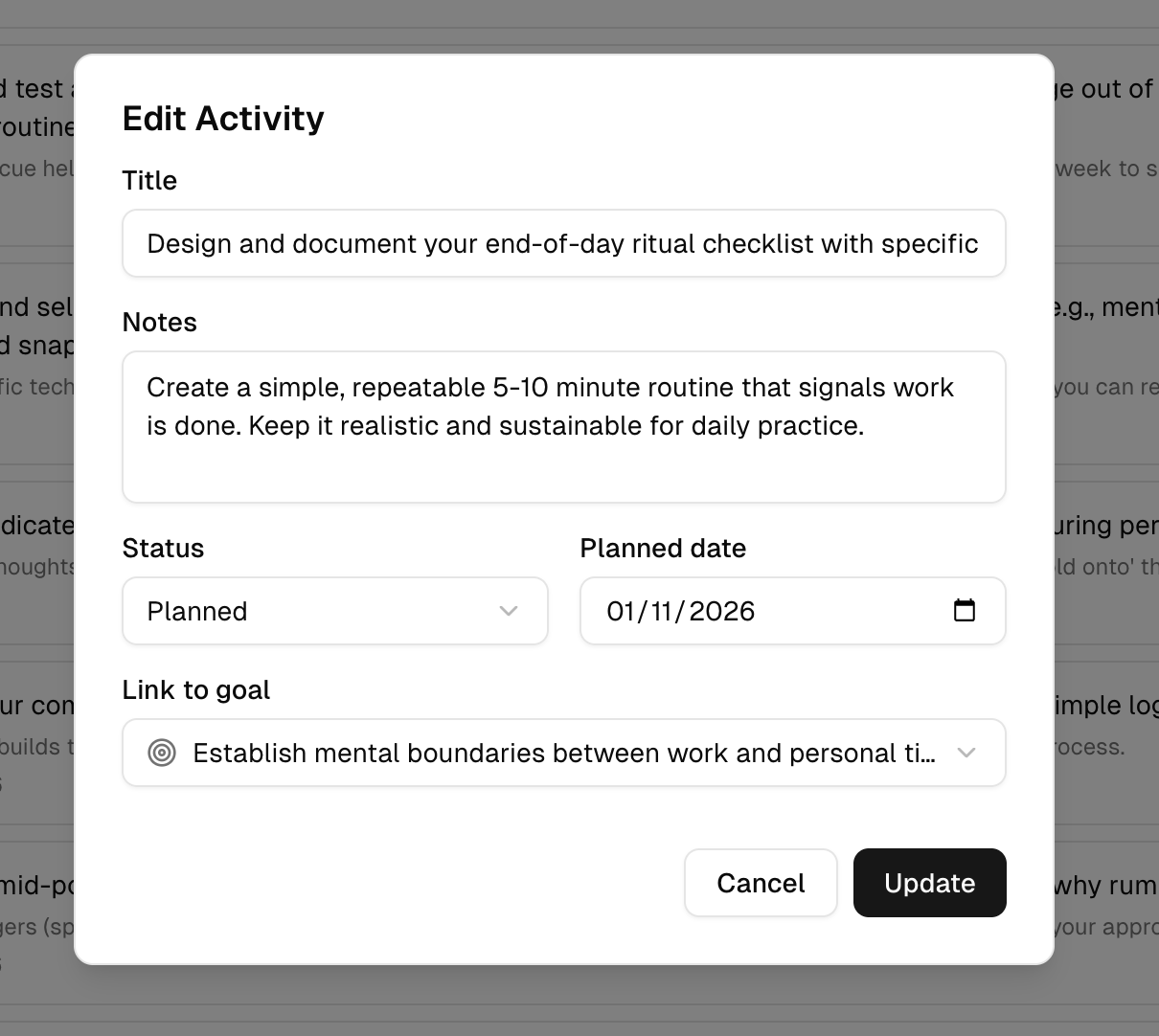
Quick link from table:
- For activities without goals, click ”+ Add goal” in the Goal column to open the edit dialog

Unlinking Activities from Goals
- Edit the activity
- Clear the goal selection
- Save changes
When a goal is archived or deleted, linked activities are automatically unlinked (not deleted).
AI Activity Generation
The AI generates personalized activities based on your goal context.
How It Works
- Navigate to a goal’s detail page
- Click the “Generate” button (or “Regenerate” if drafts exist)
- The AI analyzes your goal details and generates 5-10 suggested activities
- Review each suggestion and Accept or Dismiss
Generation Context
The AI considers:
- Goal statement: What you’re trying to achieve
- Category: Career Direction, Skill Building, Performance, or Wellbeing
- Timeframe: 30 days to 2 years
- Motivation: Why this goal matters to you
- Success criteria: How you’ll know you’ve achieved it
- Current progress: How far along you are
- Existing activities: To avoid suggesting duplicates
Tips for Better Suggestions
- Ensure your goal has detailed motivation and success criteria
- Complete your profile with role and industry information
- Accept activities that resonate, dismiss ones that don’t fit your style
- The AI learns from your patterns over time
Filtering and Organizing
Status Filter
Filter activities by status to focus on what matters:
- All: View everything
- Planned: Tasks you need to work on
- Done: Completed tasks
- Draft: AI suggestions to review
Goal Filter
Filter to see activities for a specific goal. This is helpful when you want to focus on one area of growth.
Sorting
Activities are automatically sorted for optimal workflow:
- Overdue planned activities first (need attention)
- Planned activities by date (upcoming work)
- Draft activities (suggestions to review)
- Completed activities (reference)
Overdue Indicators
Activities with a planned date in the past that aren’t marked as done are flagged as overdue:
- The date displays in red
- An “Overdue” badge appears next to the date
To resolve:
- Mark the activity as Done if completed
- Edit and update the planned date
- Delete if no longer relevant
Activities vs Goals
| Aspect | Goals | Activities |
|---|---|---|
| Scope | Long-term aspiration | Short-term task |
| Timeframe | 30 days to 2 years | Hours to 2 weeks |
| Tracking | Progress percentage | Done/Not done |
| Purpose | Define direction | Take action |
| AI Support | Goal creation chat | Activity suggestions |
Best practice: Create goals first, then break them into activities. This keeps your daily work connected to your career aspirations.
Best Practices
Keep Activities Actionable
Write activities that are clear and completable:
Good:
- Schedule 30-minute coffee chat with @SeniorEngineer
- Complete first 3 lessons of TypeScript course
- Draft 1-page proposal for Q2 project

Vague:
- Learn more about engineering
- Get better at leadership
- Think about career
Use Planned Dates
Setting a planned date:
- Creates accountability
- Enables overdue tracking
- Helps you prioritize
Link to Goals
Even for standalone activities, consider linking to a goal. This:
- Provides context when reviewing later
- Contributes to goal progress tracking
- Helps the AI suggest better future activities
Review Drafts Regularly
Don’t let AI-generated drafts pile up:
- Accept activities that resonate
- Dismiss ones that don’t fit your situation
- Regenerate when you need fresh ideas
Mark Done Promptly
Mark activities as complete when you finish them to:
- Keep your list current
- See your progress accumulate
- Enable accurate goal progress calculation
Frequently Asked Questions
Can I have activities without goals?
Yes. While linking to goals is recommended, you can create standalone activities for general tasks or one-off items.
What happens when I delete a goal?
Activities linked to the deleted goal are automatically unlinked but remain in your activity list. You can re-link them to another goal or keep them standalone.
How many activities should I have?
Aim for a manageable number of planned activities - typically 5-15 active at a time. Too many can feel overwhelming. Use the AI to generate new suggestions when you’ve completed your current batch.
Can I edit AI-generated activities?
After accepting a draft, you can edit it like any other activity. Before accepting, you can only Accept or Dismiss.
Why don’t I see the “Generate” button?
The Generate button appears on goal detail pages. Navigate to a specific goal to see this option.
How do I batch-review draft activities?
On the Activities page, filter by “Draft” status to see all AI-generated suggestions across all goals. Review and Accept or Dismiss from there.
Privacy
Activities follow the same privacy model as the rest of olllo:
- Personally identifiable information (like @-mention real names) is encrypted
- Only you can see your activities
- Use @-mentions for people and companies (see Contacts)
- Activities are exportable and portable
Ready to get started? Navigate to a goal and click “Generate” to get AI-suggested activities, or click “New Activity” to create your first task manually.