User Onboarding Guide
Welcome to olllo! This comprehensive guide will walk you through the onboarding process and help you get the most out of your career growth tracking experience.
Overview
The onboarding process consists of 5 steps designed to personalize your experience and set you up for success. The entire flow takes approximately 10-15 minutes to complete. You can pause at any time and resume later - your progress is automatically saved.
Important: Until you complete onboarding, you’ll be automatically redirected to the onboarding flow when accessing the app. Your progress is saved, so you can complete it at your own pace.
Progress Tracking
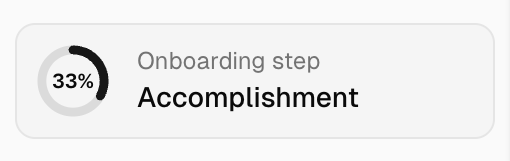
A donut chart in the sidebar shows your onboarding progress. Each completed step fills a portion of the chart, and you can click on any step to navigate directly to it (completed steps and the current step are clickable).
Onboarding Steps
Step 1: Knowledge Setup
Set up your Knowledge profile through an AI-guided conversation. Knowledge captures who you are, how you work, and how you want AI to help you. It personalizes every AI interaction across olllo — from accomplishment capture to weekly reflections.
What happens during setup:
The AI walks you through a guided 3-5 minute conversation covering:
- Your role and responsibilities: What you do day-to-day, your key responsibilities
- Company and department: Where you work and your team context
- How you’re evaluated: What success looks like in your role
- Career focus: Where you’re heading and what you’re working toward
- Theme and tone preferences: Your preferred visual theme (Light/Dark/System) and AI communication style (Encouraging/Direct/Coaching)
- Reminder preferences: When you want accomplishment and reflection reminders
- Reflection themes: Which reflection topics matter most to you (engagement, well-being, career, performance, accomplishments)
- Writing style: How you prefer AI-generated content (concise bullets, detailed narratives, or metrics-focused)
- Help focus and avoid list: What you want AI help with and what to avoid
If you’re an existing user, the AI starts with what it already knows about you and fills in the gaps.
Why we collect this:
Your Knowledge profile helps us:
- Provide contextually relevant reflection prompts tailored to your role
- Adjust AI tone, writing style, and focus areas to your preferences
- Reference your responsibilities and evaluation criteria during conversations
- Send reminders at optimal times in your timezone
- Customize reflection theme depth and ordering
You can review and edit your Knowledge anytime from the Knowledge page.
Troubleshooting:
- If the conversation seems stuck, try refreshing the page — your progress is saved
- You can exit early and come back later to finish setup
- After setup, visit the Knowledge page to fine-tune any section
Step 2: First Accomplishment
Capture your first accomplishment using our AI-powered STAR transformation.
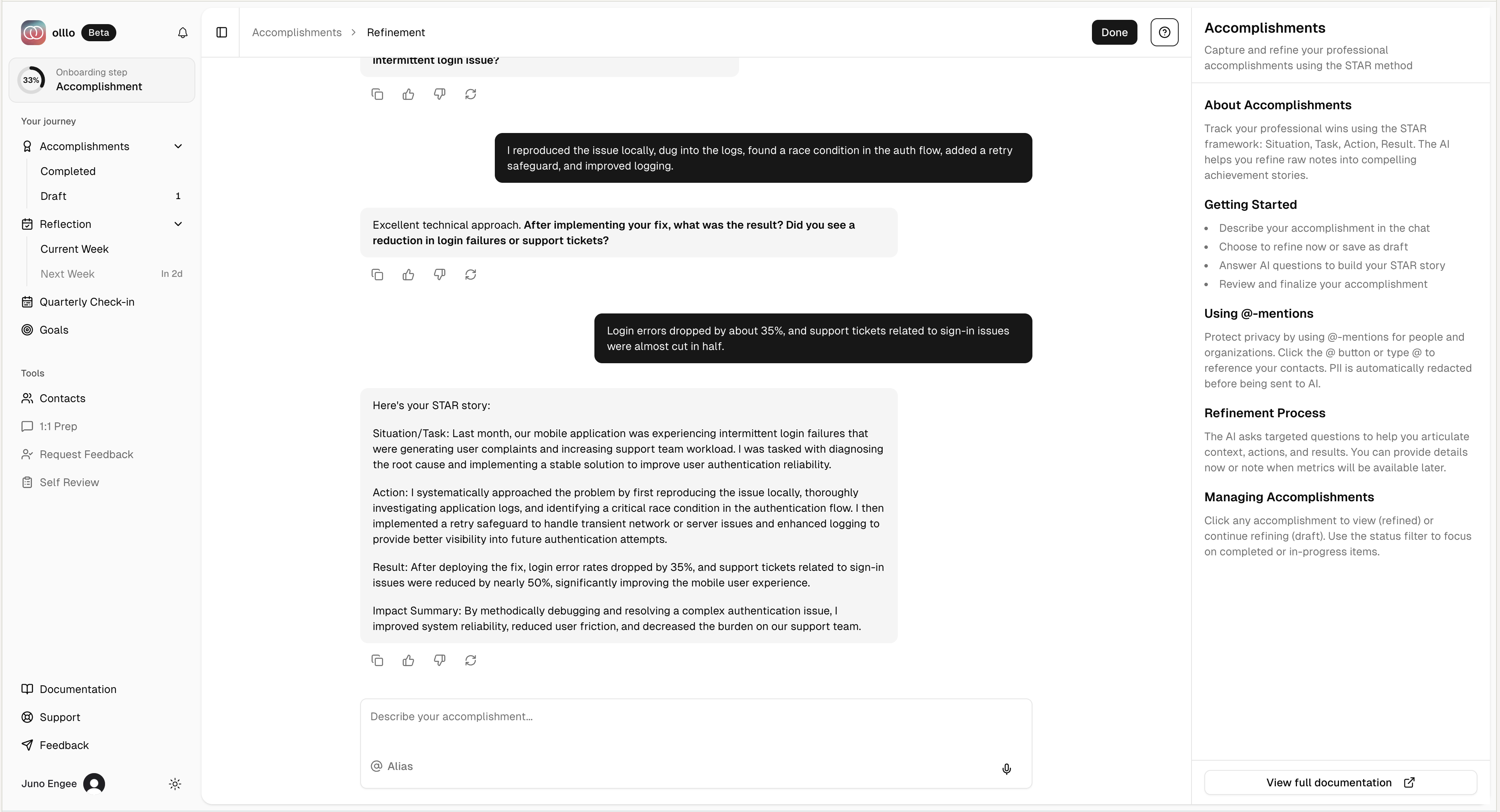
What you’ll provide:
- Raw accomplishment: Describe what you achieved in your own words
Example: “Led the redesign of our checkout flow which increased conversion by 12%“
The STAR Transformation Process:
-
Enter your accomplishment in natural language through our conversational chat interface
-
Our AI helps you refine it into STAR format through conversation:
- Situation/Task: The context, challenge, and your specific responsibility
- Action: What you did and how you approached it
- Result: The measurable outcome and impact
-
Engage in back-and-forth conversation to refine each component
-
The AI asks clarifying questions to help you capture the full story
-
Save when you’re satisfied with your accomplishment
Why we collect this:
Your first accomplishment:
- Demonstrates the STAR transformation process
- Gives you a concrete example of good accomplishment tracking
- Helps calibrate our AI to your communication style
Troubleshooting:
STAR Transformation Delays:
- Normal transformation time: 2-5 seconds
- If taking longer than 10 seconds: The system will automatically retry
- Your input is preserved if transformation fails - you won’t lose your work
Quality tips:
- Be specific about impact and outcomes
- Include numbers/metrics when possible
- Mention the challenge you addressed
- Note your specific role/contribution
Step 3: Career Goal
Define your primary career direction through an AI-guided conversation.
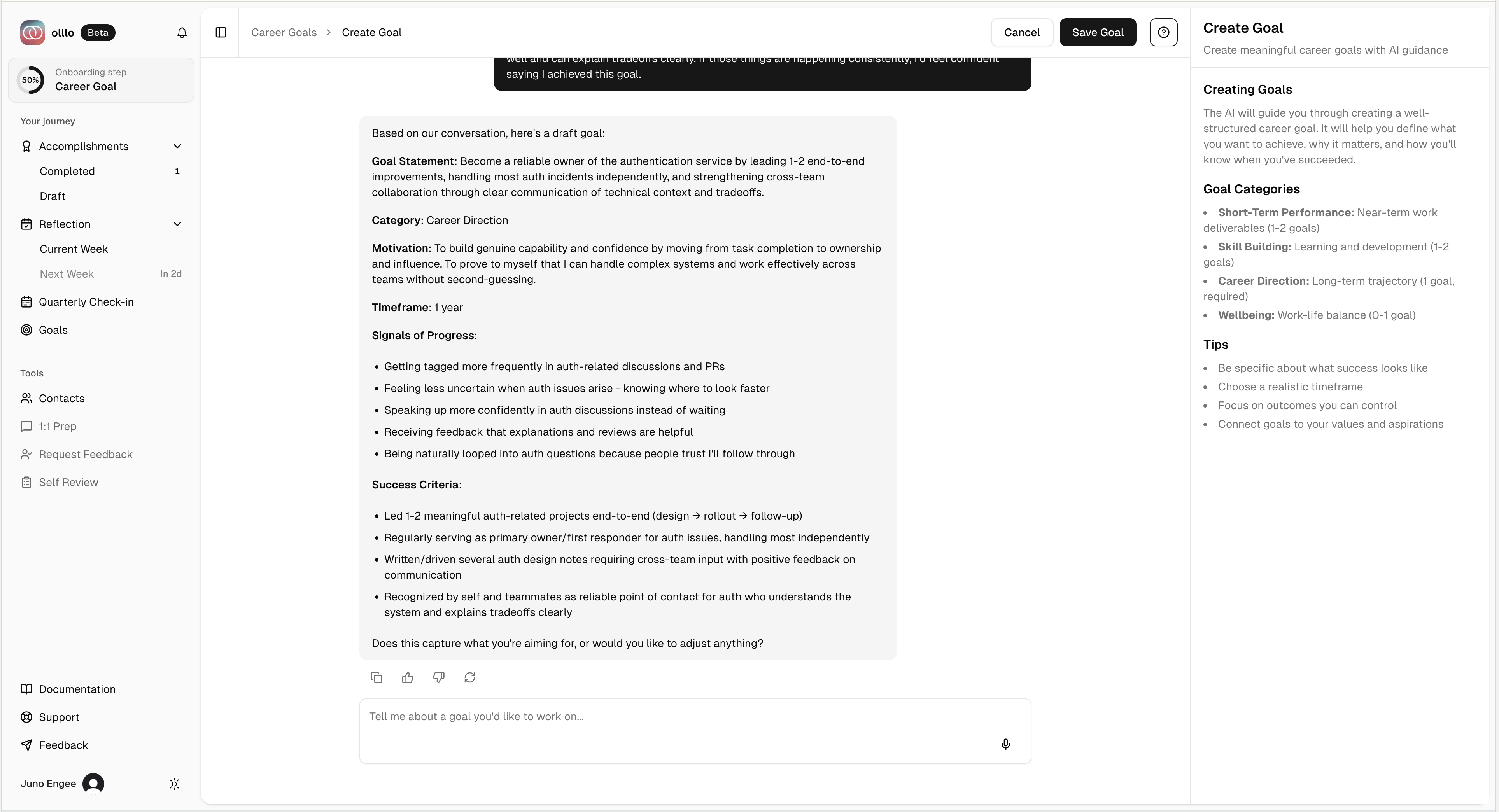
What you’ll provide:
Work with our AI coach to articulate:
- Your career direction and aspirations
- Specific outcomes you’re working toward
- Timeline considerations
Why we collect this:
Your career goal helps us:
- Generate reflection prompts aligned with what matters to you
- Track progress toward specific outcomes
- Provide relevant follow-up questions during reflections
Troubleshooting:
- Take your time with this step - career direction can be refined over time
- You can update goals later from the Goals section
Step 4: Another Goal
Add another growth goal to diversify your focus areas.
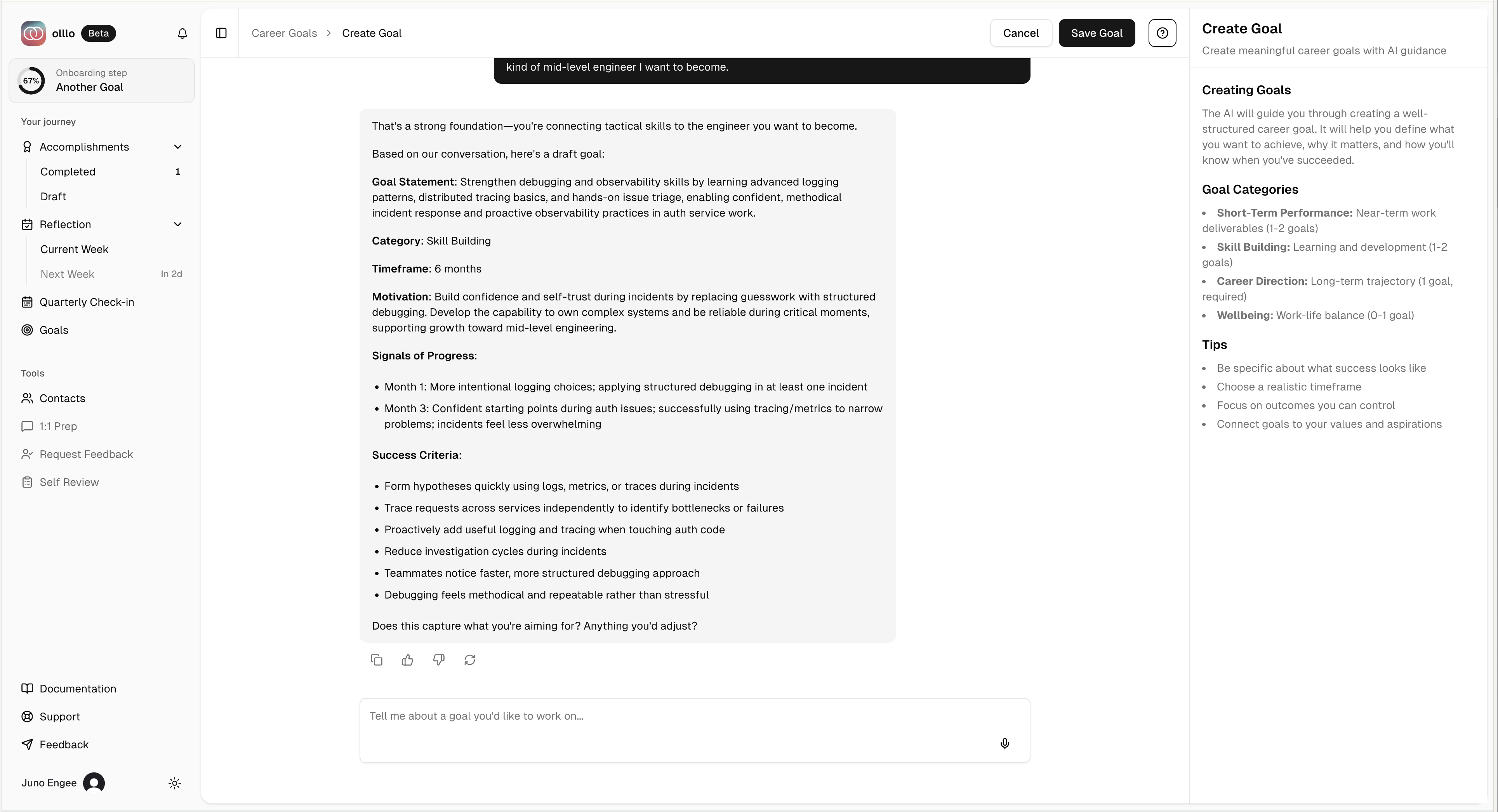
What you’ll provide:
Choose from various goal categories:
- Skills development
- Relationship building
- Visibility and recognition
- Work-life balance
- Other focus areas
Why we collect this:
Multiple goals help us:
- Provide varied reflection prompts
- Track progress across different dimensions
- Offer holistic career growth support
Step 5: First Reflection
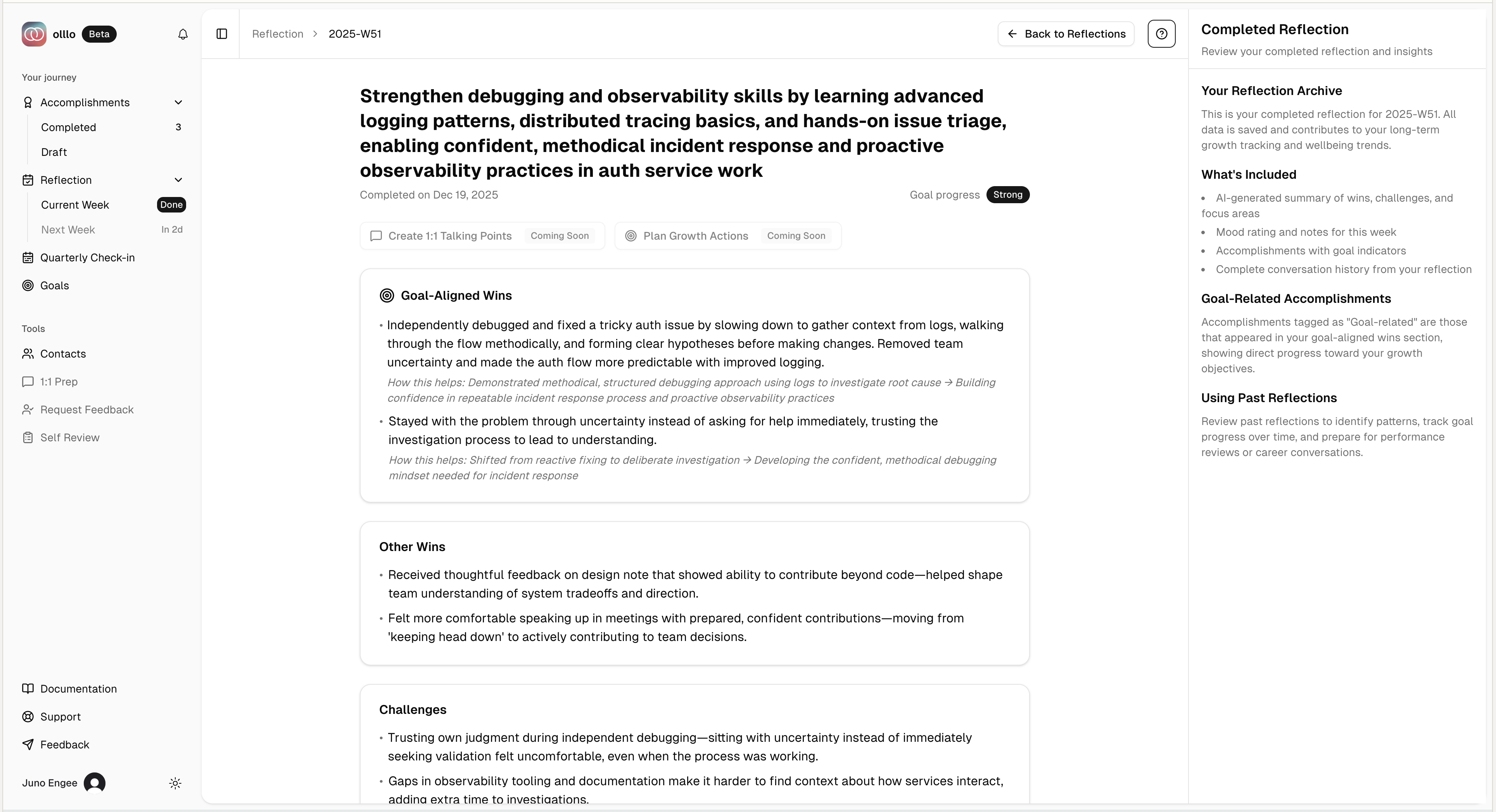
Complete your first weekly reflection to tie everything together.
What you’ll experience:
- Review accomplishments from the week
- Reflect on progress toward your goals
- Identify themes and patterns
- Set intentions for the coming week
Why this matters:
Your first reflection:
- Demonstrates the weekly reflection process
- Connects accomplishments to goals
- Establishes your reflection practice
Note: You need at least 2 accomplishments recorded before you can complete a reflection.
Existing Users
If you joined olllo before Knowledge was introduced, you’ll see an introduction dialog with three options:
- AI-Assisted Setup (recommended): A guided conversation that starts with what we already know about you and fills in the gaps. Takes 3-5 minutes.
- Set Up Manually: Go straight to the Knowledge page with a pre-populated role summary based on your existing profile. Fill in the details yourself.
- Remind Me Later: Dismiss the dialog for 7 days.
Abandoned Flow Recovery
What happens if I close the browser mid-onboarding?
No worries! Your progress is automatically saved:
- When you return, you’ll pick up exactly where you left off
- The sidebar donut chart shows your current progress
- All form data is preserved
- Your completed steps show in the progress indicator
- You can navigate to any completed step by clicking on it
Data preservation:
- Form inputs: Saved 500ms after you stop typing (auto-save)
- STAR transformation: Saved immediately after acceptance
- Step completion: Saved when you complete each step
- Knowledge conversation: Saved after each message exchange
- Session data persists for 30 days
After Onboarding
Once you complete onboarding, you can:
- Track accomplishments - Log achievements as they happen
- Complete weekly reflections - Review your progress
- Manage goals - Update and add new growth goals
- Review your Knowledge - View and edit your AI personalization profile
- Update preferences - Change theme, AI tone, writing style, or reminders via Settings
- Update work context - Modify your professional context via Settings
- Export your data - Generate reports for performance reviews
Accessing Settings After Onboarding
Your preferences and work context can be updated anytime through Settings:
- Click your avatar in the sidebar
- Select “Settings” to access preferences, work context, and notifications
- Or visit the Knowledge page to edit your full AI personalization profile
Ready to get started? Begin Onboarding