App Preferences
Personalize your olllo experience with display settings, AI preferences, and notification configuration.
Accessing Preferences
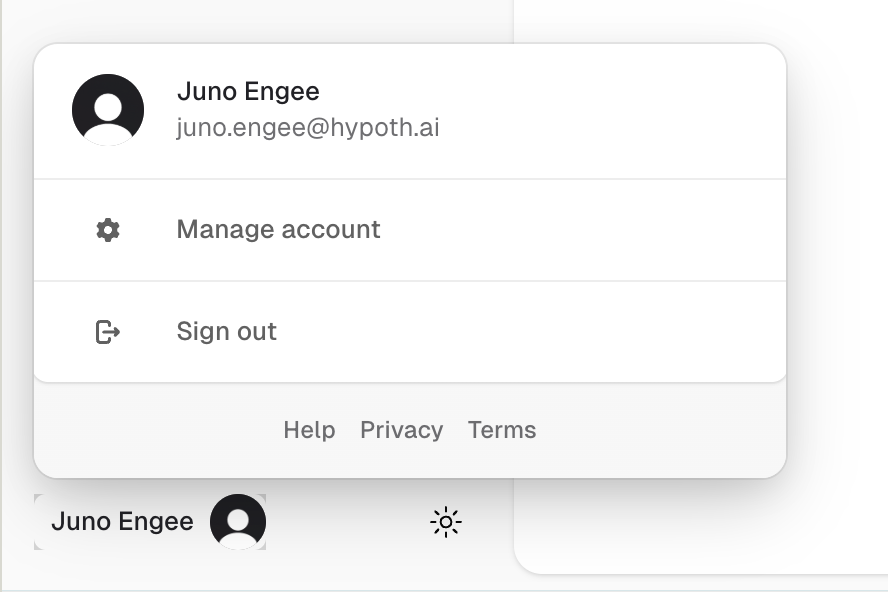
- Click on your profile avatar in the sidebar footer
- Click on “Manage account”
- Your user profile modal will open
- Select “Preferences” from the navigation menu
Display Settings
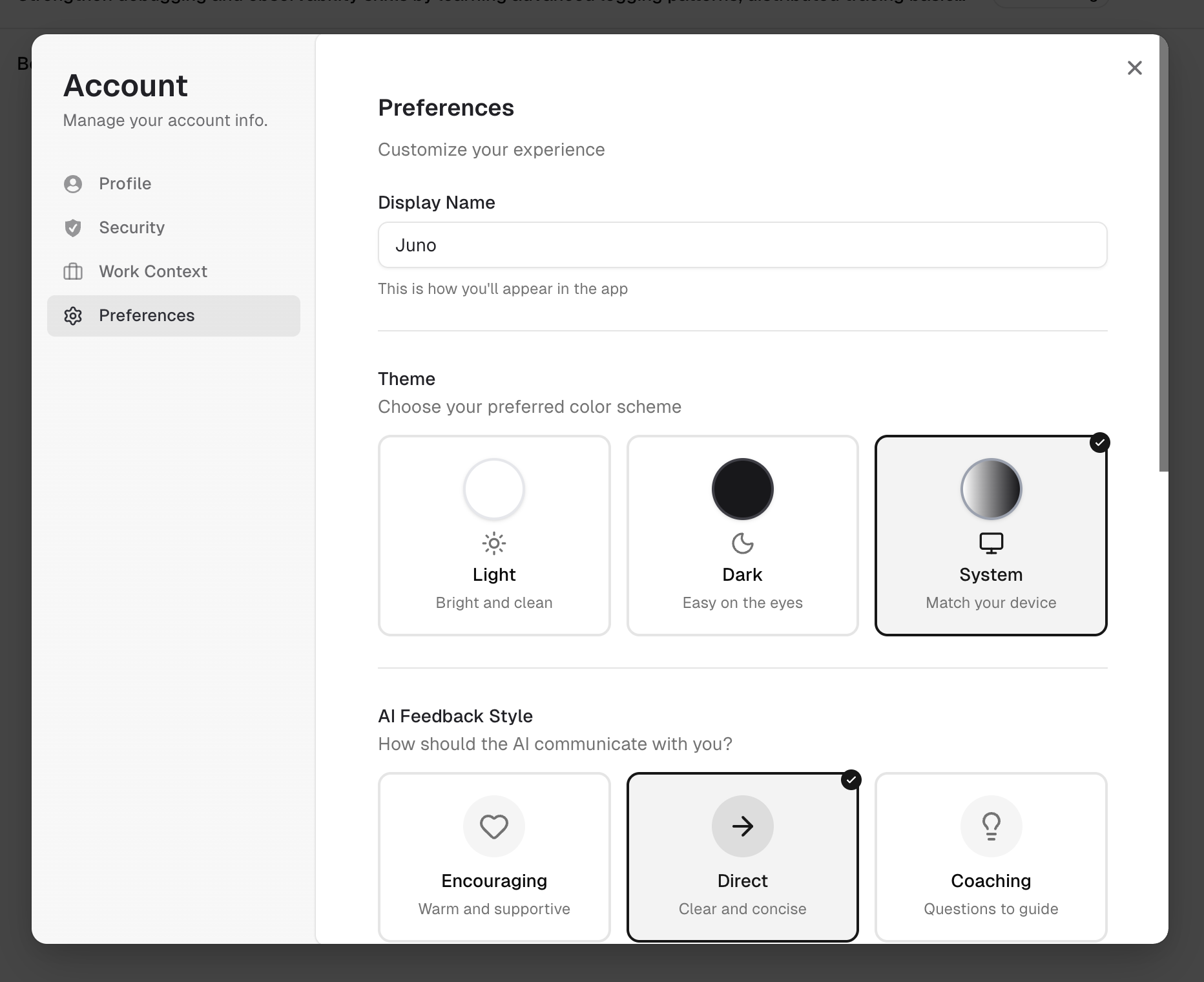
Display Name
How you want to be addressed throughout the app. This name appears in greetings and throughout your olllo experience.
Theme Preference
Choose your preferred visual theme:
- Light: Always use light mode
- Dark: Always use dark mode
- System: Follow your device’s theme setting (default)
AI Preferences
AI Tone
Choose how the AI communicates with you:
- Encouraging: Warm, supportive, emphasizes progress and positives
- Direct: Concise, matter-of-fact, focuses on facts and actions
- Coaching: Probing questions that help you discover insights yourself
Your tone preference affects how the AI interacts with you during goal creation, accomplishment refinement, weekly reflections, and all other AI conversations.
Preferred Writing Style
Control how the AI formats its written output:
- Concise Bullets: Short, punchy bullet points. Best for quick scanning and action-oriented content.
- Detailed Narratives: Full sentences and paragraphs. Best for thorough explanations and storytelling.
- Metrics-Focused: Emphasizes numbers, data, and measurable outcomes. Best for performance reviews and data-driven roles.
This affects how the AI writes accomplishment summaries, reflection insights, and other generated content.
Reflection Theme Preferences
Customize how much time your weekly reflection spends on each theme. There are five reflection themes, and you can set each to one of four levels:
| Level | Questions | Description |
|---|---|---|
| Prioritize | 3-4 | More depth on this theme |
| Normal | 2-3 | Standard coverage (default) |
| Minimize | 1-2 | Quick check-in only |
| Skip | 0 | Not included in reflections |
The five themes:
- Engagement: How connected and motivated you feel at work
- Well-being: Your overall wellness, stress levels, and work-life balance
- Career: Progress toward career goals and professional development
- Performance: Your output, impact, and effectiveness
- Accomplishments: Deep dive into specific wins and achievements
At least one theme must not be set to “Skip”. Prioritized themes appear first in the reflection conversation.
These preferences are also editable from your Knowledge page.
Notification Preferences
olllo sends helpful email notifications to keep you on track with your career growth journey.
Notification Types
Onboarding Step Emails
- Congratulatory emails when you complete onboarding steps
- Information about your next step with direct links
Accomplishment Reminders
- Scheduled emails to remind you to log your accomplishments
- Messaging adapts based on your activity:
- 0 accomplishments: “Start your streak this week!”
- 1-2 accomplishments: “Keep the momentum going!”
- 3+ accomplishments: “Great job - capture any final wins!”
Reflection Reminders
- Weekly reminders to complete your reflection
- Includes themes you haven’t yet covered
- Direct link to start your reflection flow
Waitlist Confirmation
- Confirmation email when you join the waitlist
- Explains what olllo does and when to expect access
Beta Invitation
- Welcome email when promoted from waitlist to beta
- Information about beta user benefits
- Direct link to get started
Configuring Reminders
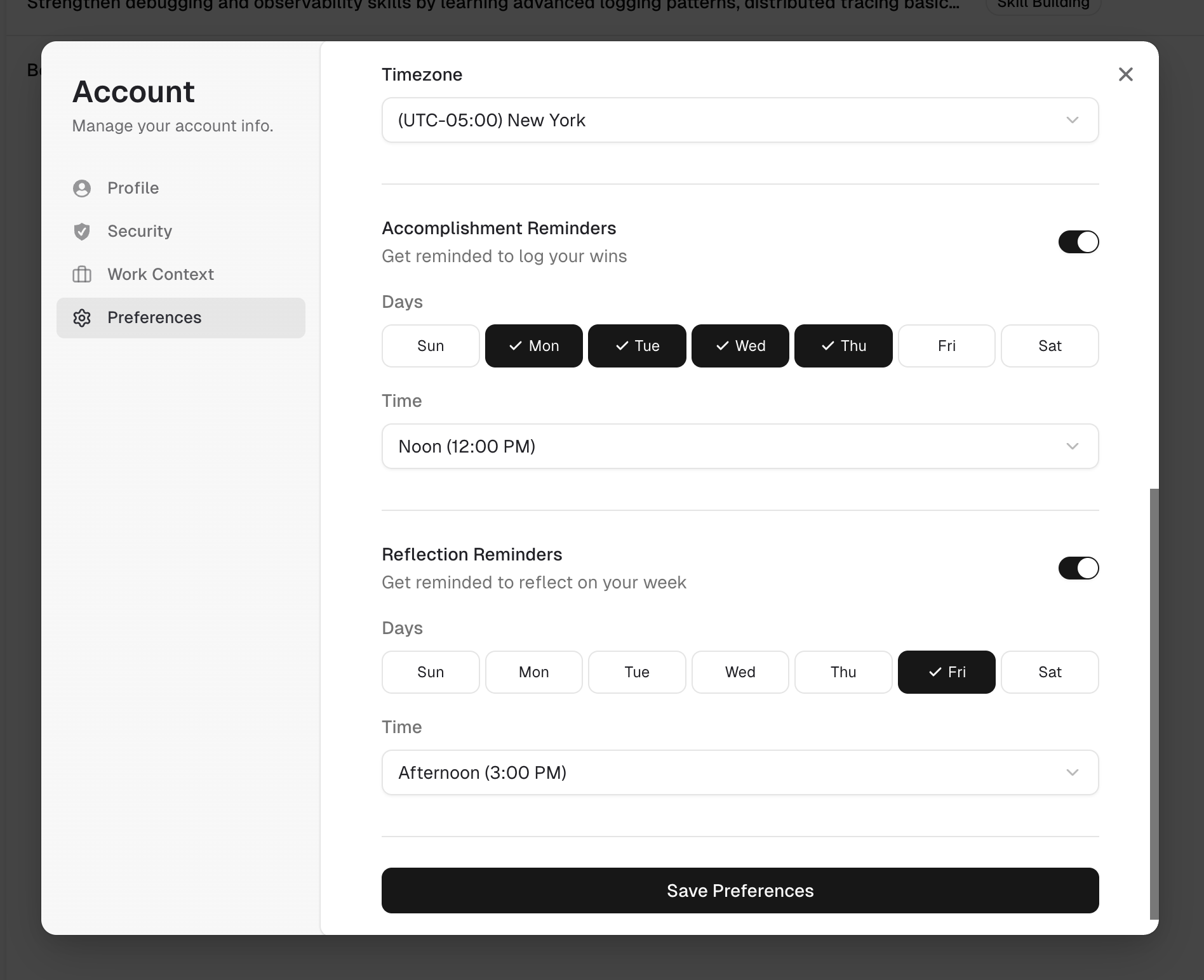
Set up reminders to log your accomplishments:
- Days: Select which days of the week you want to receive reminders (locale-aware display)
- Time: Choose a time slot (Morning, Noon, Afternoon, Evening, or Night)
Configure reminders for weekly reflections:
- Days: Select which days to receive weekly reflection reminders
- Time: Choose a preferred time slot
Deep Links
All email CTAs include direct links to the relevant section in olllo:
- Onboarding emails link to your next step
- Accomplishment reminders link to the accomplishments page
- Reflection reminders link to your weekly reflection
Timezone Detection
Timezone detection uses your browser settings - you can override it manually if needed.
Troubleshooting
Reminder Notifications
If you’re not receiving reminders:
- Check your email spam folder
- Verify your email address is correct
- Ensure reminders are enabled in Preferences
- Check that you’ve selected days and times
- Wait for scheduled time - reminders are sent at your configured time in your timezone
Emails Arriving at Wrong Time?
- Check your timezone - Update your timezone in Preferences
- Check your schedule - Verify the days and time slot in Preferences
Missing Email Content?
If email content appears incomplete:
- Try viewing in a different email client
- Check if images are blocked in your email settings
- Contact support if the issue persists
Privacy
Your notification data is stored securely and used only to:
- Send you the emails you’ve opted into
- Track delivery status for troubleshooting
- Improve the notification experience
We never share your email address or notification preferences with third parties.
Related Topics
- Knowledge - Your AI personalization profile
- Work Context - Update your professional information
- Privacy & Data - Learn about data protection